Activity: Open Your Repo on Your Computer
Get a GitHub personal access token, clone your repository to your computer, change a file, and push the change back. Estimated time: 10 minutes.
Reading: the personal access token and clone a repository sections of the Using GitHub and AI chapter, and the GitHub help section.
📋 What to do
Before you start: you need a GitHub account, a GitHub repository you made or were added to, and its complete URL (it looks like https://github.com/<your_github_id>/<your_repo>.git). If you are missing either, do the two earlier activities first: GitHub account and full name and Make a GitHub repo.
Part 1 — Get your personal access token.
- Go to github.com and click your profile icon in the upper right-hand corner, then Settings.
- In the left-hand menu, scroll down to Developer settings.
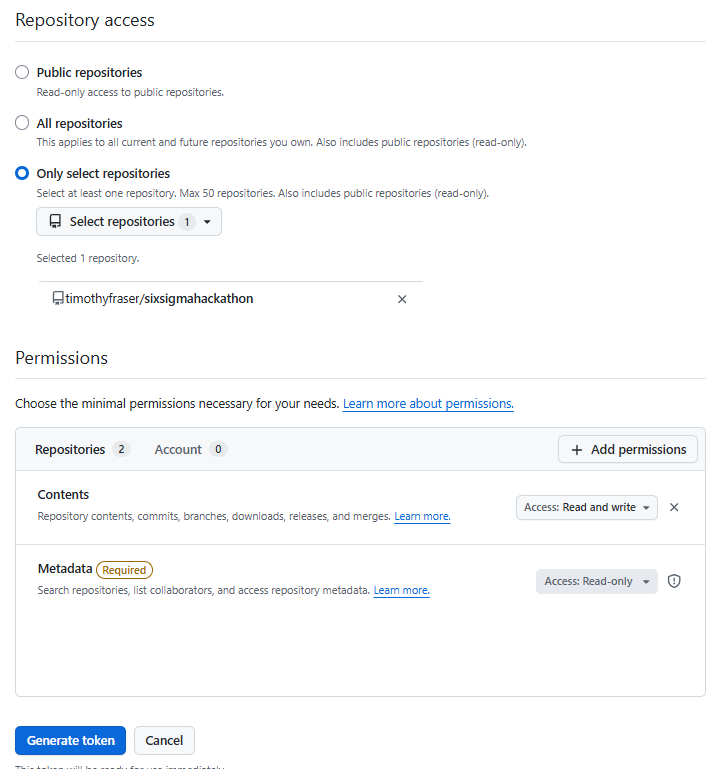
- Select Personal access tokens and create one. You can make a fine-grained token, where you pick the repository the token can reach, or a classic token, which can reach all of your repositories.
- Classic token: give it a name; set an expiration date after the end of this term; under scopes, select the
public_reposcope and thereposcope. - Fine-grained token: give it a name; set an expiration date after the end of this term; under Permissions, select Contents (this automatically adds Metadata) and make sure Contents is set to Read and write.
- Classic token: give it a name; set an expiration date after the end of this term; under scopes, select the
- Copy the token and store it somewhere secure. Some people use a password manager app; others use a note-taking app. GitHub shows it to you only once, and anyone holding it can act as you, so treat it like a password.
Part 2 — Use it from your own computer.
- Open Git Bash and clone your repository (copy the full URL from GitHub's green Code button), then move into the new folder:
git clone https://github.com/<your_github_id>/<your_repo>.git
cd <your_repo>
- Open that folder in your editor — VS Code, Positron, Cursor, or any editor you like (File › Open Folder).
- Open
README.md(or create it if the repository does not have one yet), make a one-line change such as adding your name, and save it. - Back in Git Bash, stage, commit and push your change:
git add README.md
git commit -m "my first commit"
git push
When Git asks you to sign in, either a browser window opens (sign in to GitHub there), or the terminal asks for your username and then a password. Paste your personal access token as the password — not your GitHub account password. (Nothing appears on screen as you paste; press Enter.) - Refresh your repository on GitHub. Your change should be there. Click the new commit and copy the URL of that commit page.
R users can also run Git from R with the gert and credentials packages — see Commit, pull and push in the Using GitHub and AI chapter. For a first pass, Git Bash is all you need.
📮 Submit
Submit on Canvas (1 pt) — graded on completion; your deadline is on the Canvas assignment. Submit the URL of your pushed commit. Never paste your token itself into Canvas or into any chat.
Note: this page reproduces the activity instructions so you can find them again after class, and it is the version kept current — surveys, slide decks and helper links are updated right here. Submit on Canvas; the due date and your grade live there.